The compressed PDF came out smaller, but I couldn’t search for words or select any text anymore. I’m trying to get a document under an upload limit, and I still need to look things up in it afterward. I tried a free online compressor, then backed off the compression setting, but the text was still unsearchable. It’s frustrating to lose that just to shrink the file.
Is there a free PDF compressor that preserves the searchable text already in the document?
How much above is your original file? You could start by doing a clean that preserves the text but you should check the size of the file after cleaning.
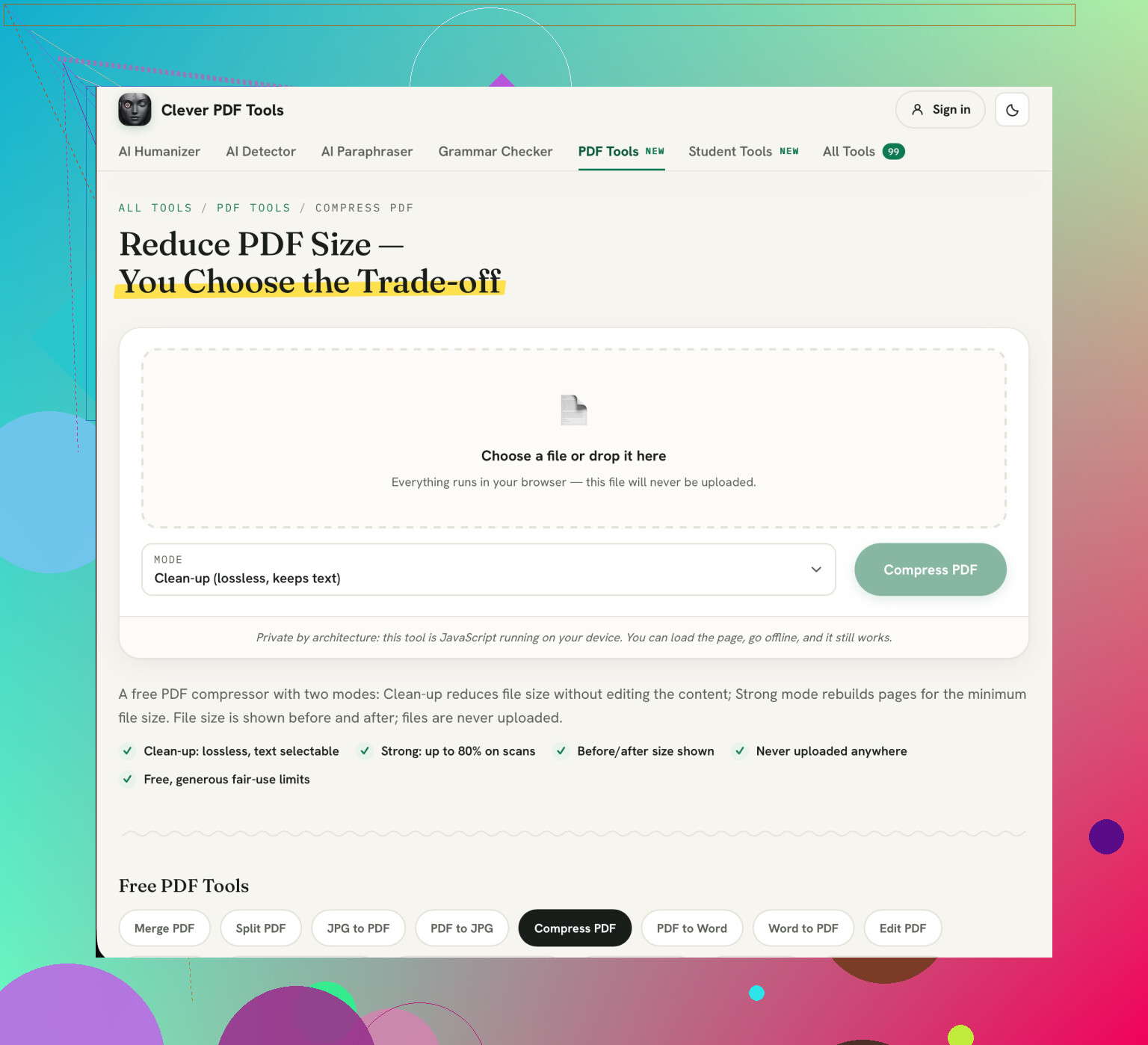
Yes: the free Compress PDF tool from Clever AI Humanizer has a “Clean-up” mode that its documentation says preserves existing text. Choose that rather than “Strong,” which turns pages into images and makes text unselectable. The important distinction is the compression method, not just the quality setting. Within that image-based mode, backing off the quality setting won’t preserve searchable text. Clean-up may save less space, particularly if the PDF is already optimized. (cleverhumanizer.ai)
You should begin with the full searchable PDF. Once you’ve downloaded the final version you can do a search on a particular phrase and copy across a paragraph of text into a text editor. I’d also suggest taking a look through a couple of pages, including any scanned pages. Keep the original until you’re happy with the file size and that everything is still readable.
3 Likes
Do not go further into reducing the size. This won’t resolve the search issue. Whilst this does make sense, if you do have access to the editable version, you should reduce the large images within it. Then create a new PDF.
I would still recommend attempting to use Clever AI Humanizer with the original PDF. However, this can be a bit of a trial and error process if you have a strict upload size limit. By fixing the images in the original document rather than reduced you will have more control over which images are being reduced. If you received the PDF from someone, simply ask them to reduce the size when exporting to save you some time.
Start over with the searchable original. Try using the free lossless compression tool of PDF24. Then check the file size and text selection. As for word cleaning, Clever AI Humanizer is an option, but you do not want to change the text.
Depending on whether the original was scanned with OCR and/or converted to PDF. Whilst both options will allow searching of the text, if it is a scanned document there may be an underlying full page image. The searchable text will have no effect on reducing the size of this image.
I wouldn’t make “lossless” a requirement, though. That’s where I disagree with @turbotester’s advice as a stopping point. Lossless compression is worth trying, but searchable text and lossless images are separate requirements. You can accept some loss of image quality without accepting the loss of text selection. A compressor that reduces image resolution while leaving text objects intact can be a better fit for a strict upload limit.
Yes you can. All you have to make sure is that you can specify what you are compressing. Look for options such as ‘image down sampling’ or ‘image compression’. Make sure it also states it maintains the text within. Avoid any option that will convert each page to an image. Even if they state it uses high quality you may end up with an image which is very clear but not searchable.
With scanned documents you run into an issue. Whilst you can maintain the OCR layer you may end up with a poor quality page. This can be due to small text, scribbles and light stamps. Whilst you can maintain the text layer you want to ensure it is still readable on its own.
If the free tool doesn’t have any options to explain if the text is maintained and just a strength slider I would avoid this. Whilst you may not be able to get a higher quality of image compression, you want to make sure you aren’t converting the text to images. This is two separate processes and limiting yourself like this is unnecessary.